 Isolatedd
 Support & troubleshooting
Check service status
See live checks and published incidents before troubleshooting further.
Updated October 10, 2026
Open the status page
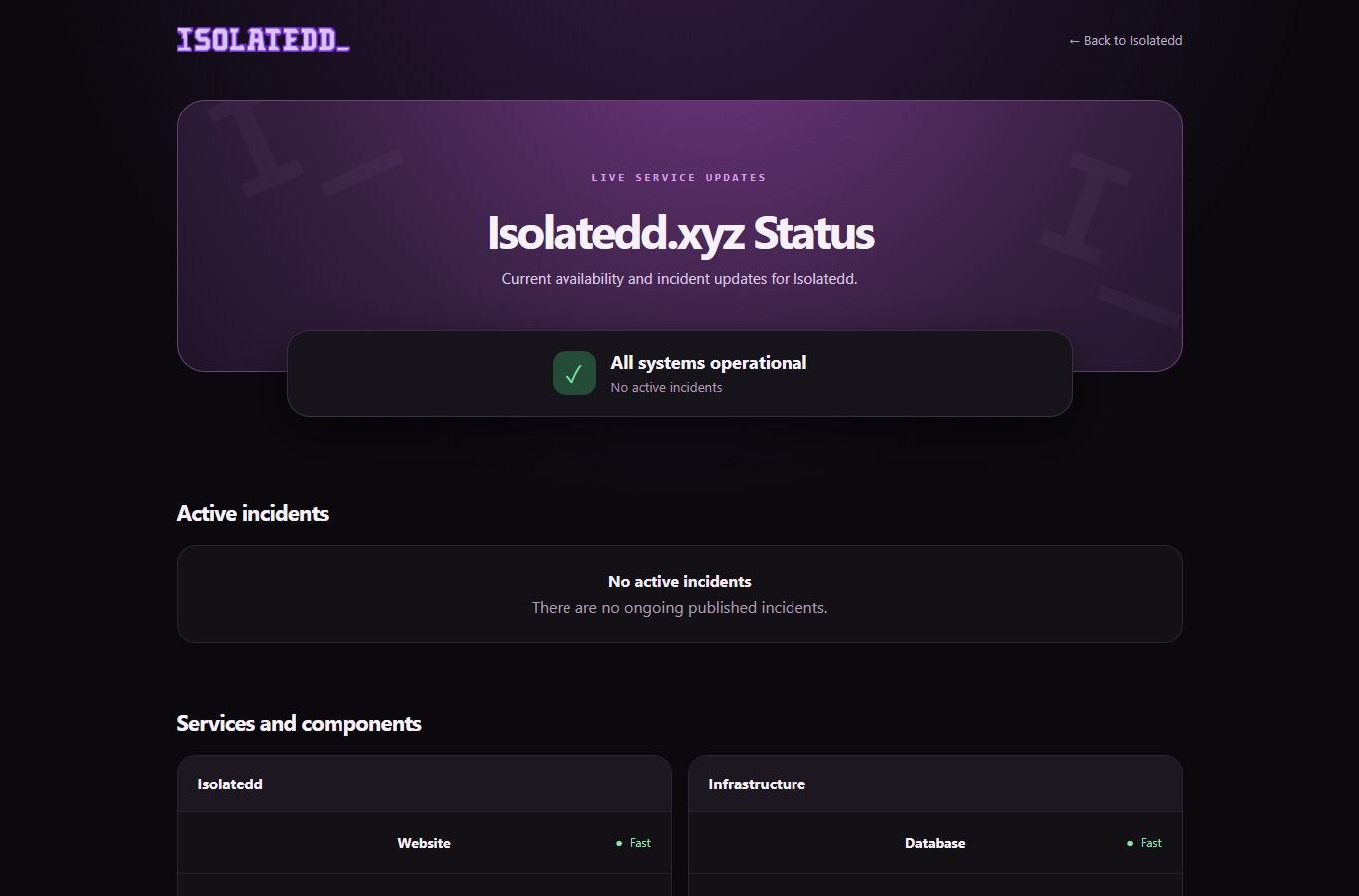
Visit status.isolatedd.xyz. The overview reflects monitored components and active incidents, while incident history records resolved events.
- Look at the overall banner for the current state.
- Inspect the component that matches the feature you are using.
- Read Active incidents for details and updates.
What the labels mean
Components may be Fast, Average, Degraded, or Down. One or two Average checks do not by themselves turn the overall banner yellow. An incident can be published separately with updates from staff.
Note
A green banner does not guarantee that every individual browser request will succeed. Report a repeatable problem through Contact Center.