 Isolatedd
 Profile guides
Add audio to your profile
Upload tracks, set the active song, and show the player.
Updated October 10, 2026
Upload a track
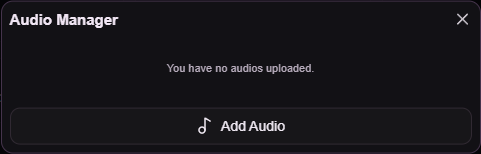
Open Customize Profile → Assets Uploader → Audio to open Audio Manager. Free accounts can keep two tracks; Premium accounts can keep four.
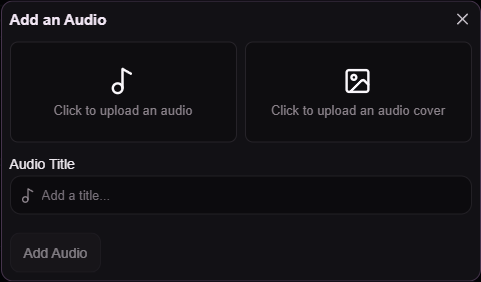
- Select Add Audio.
- Choose an audio file and enter an Audio Title.
- Optionally choose a cover image.
- Select Add Audio and wait for the upload to complete.
Choose what visitors hear
Select a track in Audio Manager to make it active. Turn on Audio Player to show playback controls on the profile. Shuffle Audios can choose a random track on each visit.
- Click the track you want active.
- Turn on Audio Player if you want visitors to control playback.
- Open My Page to hear and check the result.
Note
Browsers can restrict autoplay. Visitors may need to interact with the page before sound plays.
Style the player
When Audio Player is enabled, Audio Player Customization offers background, text, accent, opacity, and blur controls. Save and preview at your chosen card layout.