 Isolatedd
 Profile guides
Use a custom cursor and cursor effects
Upload a cursor image, then optionally add a Premium motion effect.
Updated October 10, 2026
Upload a cursor
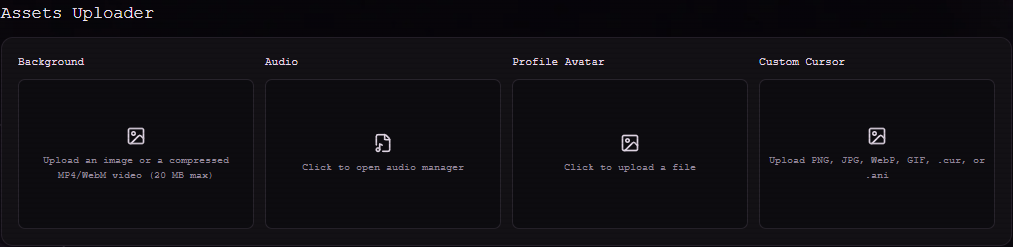
The Custom Cursor tile sits in Customize Profile → Assets Uploader. It accepts PNG, JPEG, WebP, GIF, .cur, and .ani files. The editor previews the selected cursor after upload.
- Select Custom Cursor and choose a supported file.
- Wait for the upload to finish.
- Move your pointer over My Page to see it in context.
Add a motion effect
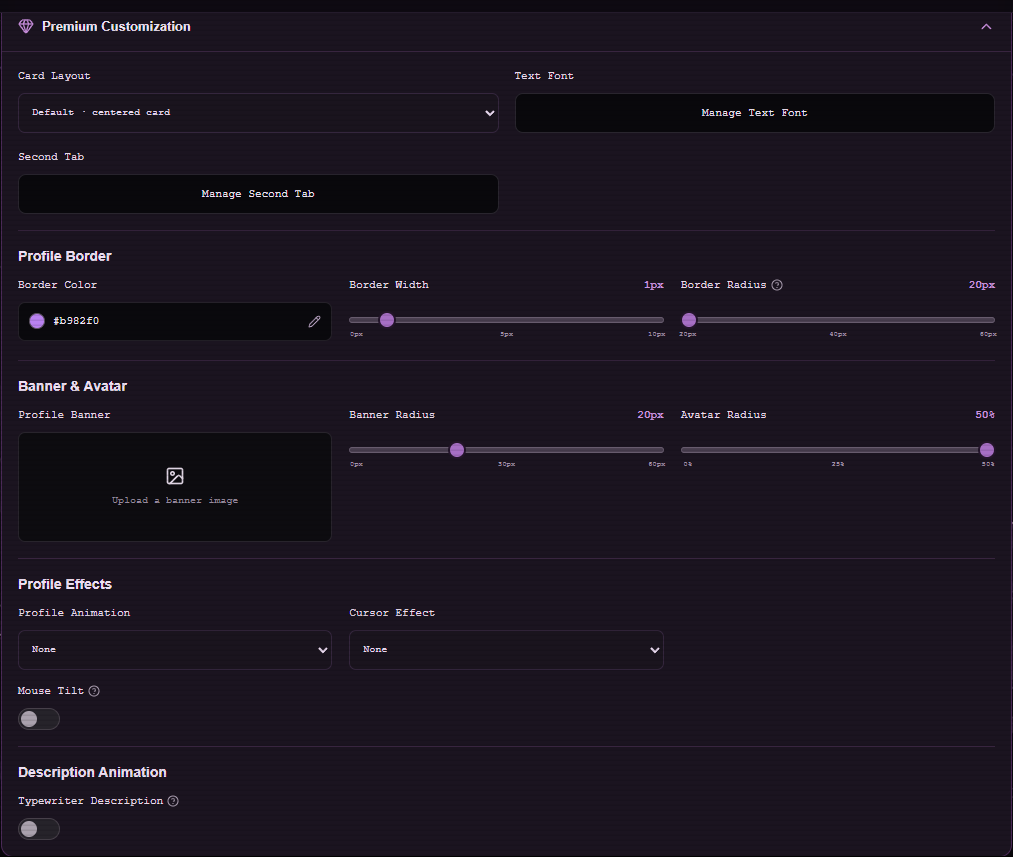
Premium Customization → Profile Effects offers cursor glow, sparkles, and trail effects. An effect can be used with your cursor image or on its own, depending on the style you choose.
Check where it appears
Custom cursors are primarily for pointer devices. Touchscreen visitors may not see a cursor at all. Keep your profile usable without the effect.
Note
If an animated cursor does not move, check your browser and operating system animation settings.