 Isolatedd
 Edit your profile
Add a description, avatar, and display name, then preview the result.
Updated October 10, 2026
Open Customize Profile
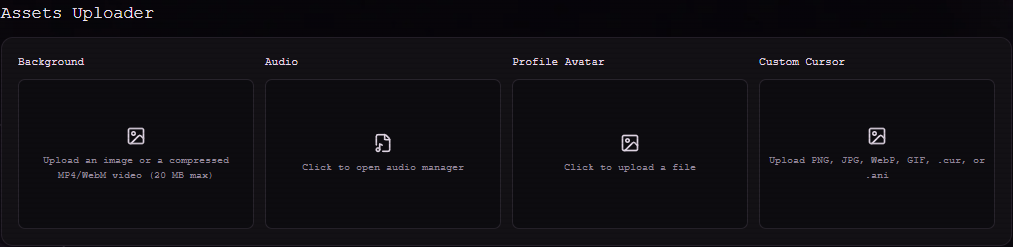
Sign in and select Customize Profile in the dashboard sidebar. The Assets Uploader is where you set the avatar and background; General Customization contains your description and visual controls.
- Choose Profile Avatar to upload a PNG, JPEG, or WebP image.
- Enter a short Description under General Customization.
- Use Save Changes for settings that show the save bar. Asset uploads save after they finish.
Set a display name
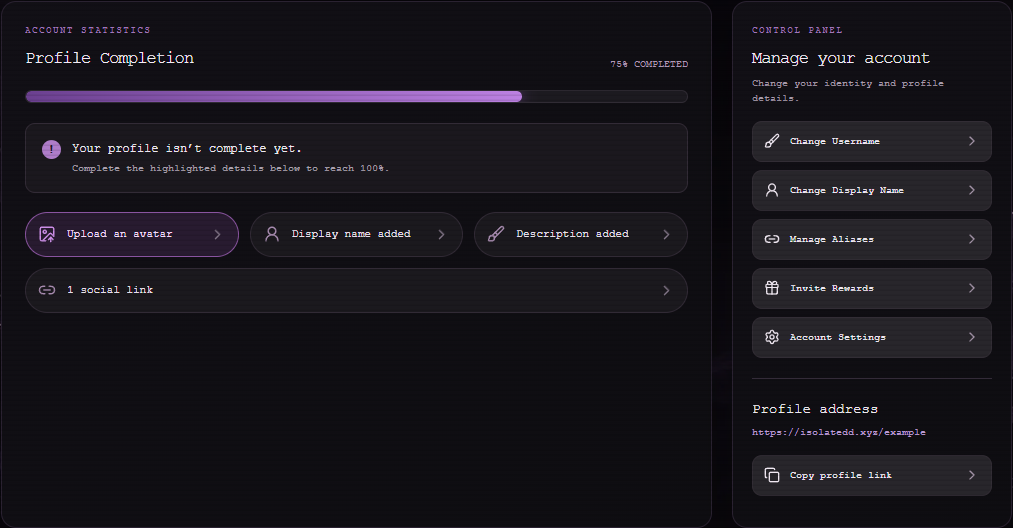
Your display name is separate from your username. Account Overview offers an Add a display name task, and Account Settings also contains profile identity controls. Your public URL still uses your username.
Preview what visitors see
Select My Page in the dashboard sidebar, or open isolatedd.xyz/your-username. Check the result on both a desktop and phone, especially if you use a video background or long description.
Your public profile only shows changes that have finished uploading or have been saved.